
How Do You Turn a Local LLM Into an API Server?
Run it through Ollama or Jan, both of which expose an OpenAI-compatible endpoint on your own machine: http://localhost:11434/v1 for Ollama, http://localhost:1337/v1 for Jan. Point any tool built for the OpenAI SDK at that URL with any placeholder API key, and it behaves exactly like a cloud provider: same request format, same streaming, same function-calling, except free, private, and offline. That includes coding agents like OpenCode, Continue, or anything else that lets you set a custom base URL.
That’s the whole trick. The harder question, the one most guides skip, is what happens when you actually push a modest GPU past a few exchanges. We ran that experiment on our own hardware. It went well, then it broke, and the way it broke is more informative than if it hadn’t.
We Tried It on a $150 PC
The test bench, priced in the neighborhood of $150 total:
| Component | Spec |
|---|---|
| Motherboard | MSI B150M Mortar |
| CPU | Intel Core i5-6600 (4 cores / 4 threads) |
| RAM | 16GB DDR4 2133MHz |
| GPU | Sapphire Nitro Radeon RX 580, 8GB GDDR5 |
| Storage | Kingston 60GB SSD |
| OS | Ubuntu 26.04 LTS |
We installed Ollama, pulled Gemma 4 E4B, and started with a real business problem: the kind of multi-turn analytical back-and-forth you’d actually use a chat assistant for, not a canned demo prompt. The results were fast and genuinely useful, well within what the RX 580’s memory bandwidth should support on a 4B-class model.
Then, at the seventh message, responses started cutting off mid-sentence.
Why Local Models Cut Off Mid-Response (It’s Not a Bug)
It’s the context window, and the mechanism is documented, not mysterious. Ollama sizes its default context by available VRAM: under 24GiB, the default is 4,096 tokens. An 8GB card, ours included, falls well inside that bucket.
That 4,096-token budget isn’t just for the model’s reply. It has to hold the entire conversation history and the response being generated, together. Every message you send eats into the same fixed pool. By message seven, the accumulated back-and-forth had consumed nearly all of it, leaving too little room for the model to finish a thought before hitting the ceiling. The output didn’t get slower or vaguer. It just ran out of space to keep talking.
This is the same budget our KV cache breakdown covers from the memory side: context length isn’t free, and a fixed default doesn’t know or care what your GPU can actually afford.
The Fix: Bake a Larger Context Into the Model
Ollama’s local endpoint doesn’t let you change context size per-request, so the reliable fix is building a variant with a larger context baked in. On the same machine:
nano Modelfile
FROM gemma4:e4b
PARAMETER num_ctx 16384
ollama create gemma4-16k -f Modelfile
16,384 tokens is a reasonable ceiling for an 8GB card: enough headroom for real conversations without forcing layers out to system RAM, which is its own performance cliff (Ollama will offload to CPU RAM when VRAM runs out, and generation speed drops hard when it does). If your responses start crawling, the fix is the same command with a smaller number: try 8192 to force everything back onto the GPU.
Connecting a Coding Agent to Your Local Model
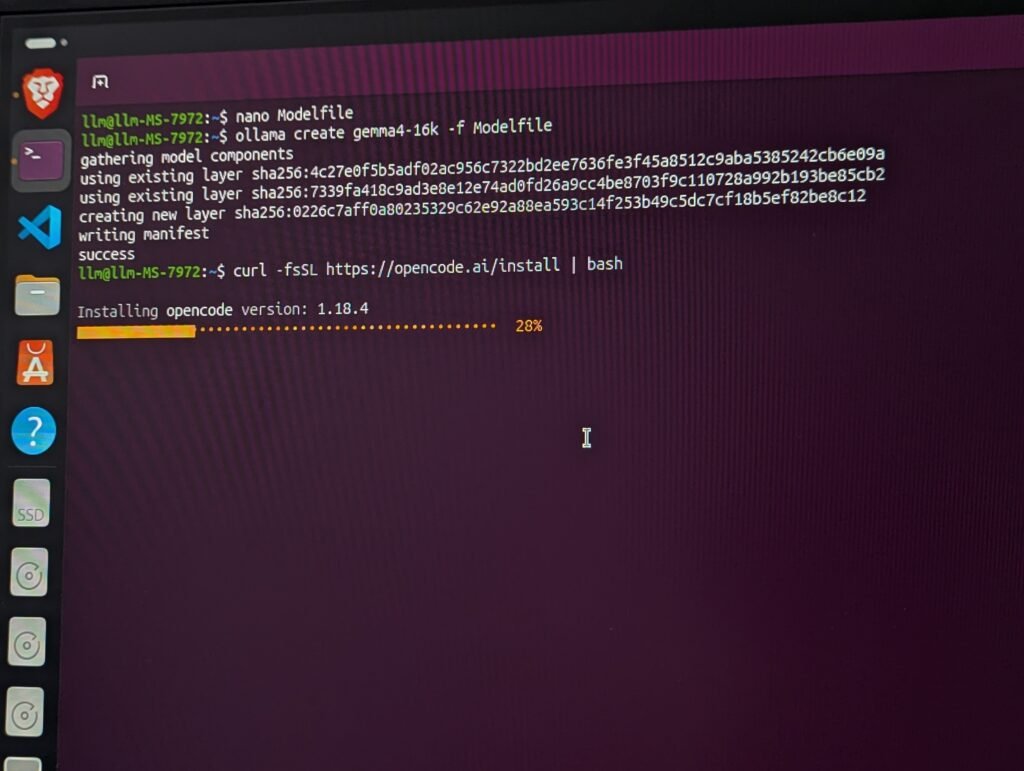
With gemma4-16k built, we installed OpenCode, an open-source terminal coding agent, and pointed it at the local Ollama endpoint:
curl -fsSL https://opencode.ai/install | bash
mkdir -p ~/.config/opencode
nano ~/.config/opencode/opencode.json
{
  "$schema": "https://opencode.ai/config.json",
  "provider": {
    "ollama": {
      "npm": "@ai-sdk/openai-compatible",
      "name": "Ollama",
      "options": {
        "baseURL": "http://localhost:11434/v1"
      },
      "models": {
        "gemma4-16k": { "name": "gemma4-16k" }
      }
    }
  }
}
This matches Ollama’s own official OpenCode integration guide exactly, and it generalizes: any tool that accepts a custom OpenAI-compatible base URL, not just OpenCode, connects the same way. Restart the tool after editing the config; changes aren’t picked up live.
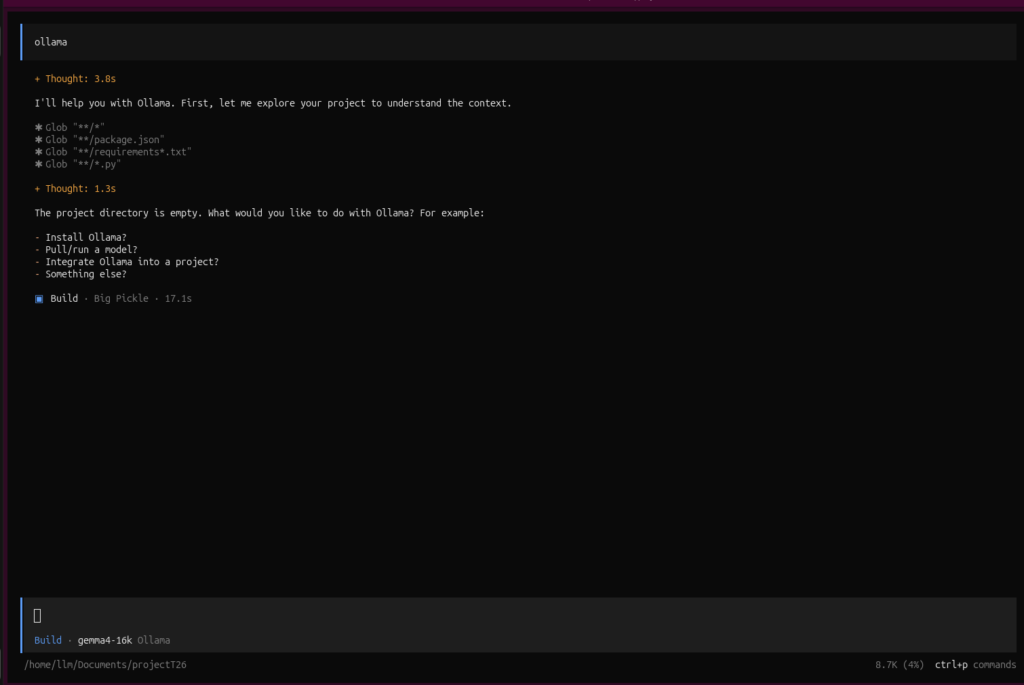
In the OpenCode interface, press Ctrl+P and select your local model.
Where the Local Setup Broke Down
The task was deliberately small: a Python CLI utility called siteguard that checks a list of domains’ HTTP status and SSL certificate expiration. The kind of thing that should take a competent assistant a couple of minutes.
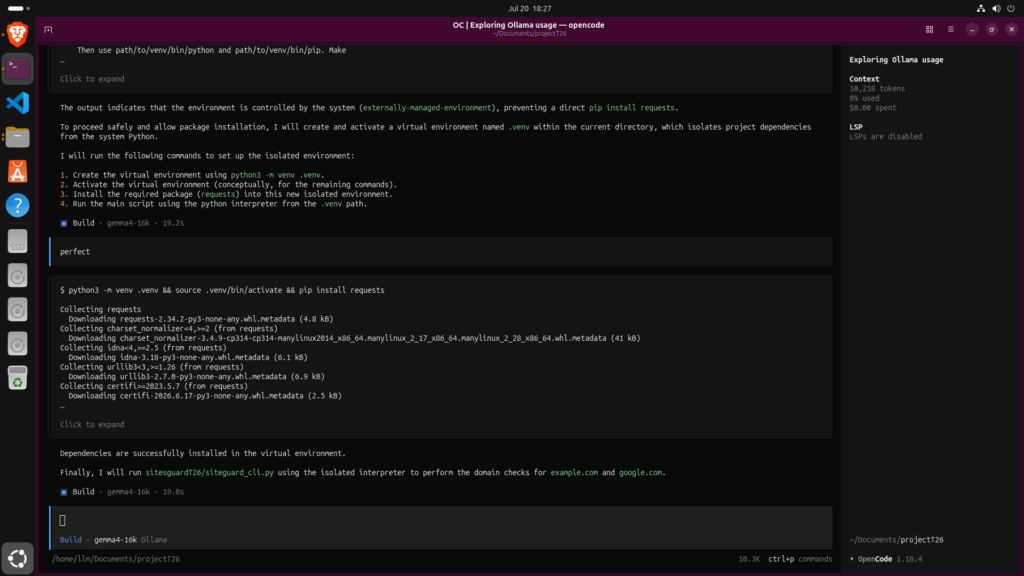
It started reasonably. The agent hit a pip install failure from Ubuntu’s externally-managed-environment restriction, correctly diagnosed it, and built a virtual environment to work around it: real, working troubleshooting, no complaints there.
Then the context bill came due. As error traces and correction attempts piled up inside the 16k window, the model’s grip on the task visibly slipped, but it wasn’t dishonest about it. Unable to get real SSL certificate parsing working, it said so directly and proposed dropping full certificate verification for an HTTP-only check instead; the code that followed matched that admission exactly: a hardcoded placeholder date and an explicit “SSL Check Skipped” message, not a hidden fake. Shortly after, it asked for help installing the requests and cryptography Python packages by hand. The manual assist didn’t turn things around: two messages later, it stopped responding entirely: no more edits, no more replies, just silence.
Checking the file afterward (by hand, in nano, without editing anything) the damage was clear: a genuine IndentationError on line 53, sitting on top of the placeholder SSL logic. The local model hadn’t lied. It had run out of room to finish a job it had already told us, honestly, that it couldn’t complete.
The Cloud Fix: DeepSeek V4 Flash
Rather than trying to hand-fix it, we swapped OpenCode’s backend to DeepSeek V4 Flash (selected through OpenCode’s default provider option, no custom API key configured) and asked it to pick up the same task.
It didn’t start from a blank file, and it didn’t try to patch the IndentationError in place either. It kept the roughly three sections of the existing code that were still sound, rewrote the rest, including the SSL logic the local model had given up on, and ran it. By our own watch, the passing test completed in under ten seconds:
--- Scan Results ---
Domain               HTTP Status   SSL Expiration
--------------------------------------------------------------------------------
vramcalculator.com   200           Expires: 2026-XX-XX 13:58:49 (OK)
google.com            200           Expires: 2026-09-21 08:37:24 (OK)
That’s the honest shape of the result: not a faster version of the same fix, a more decisive one. Where the local model spent its last useful turns asking for help and then ran out of room to finish, DeepSeek triaged the file in a single pass: keep what works, replace what doesn’t, the kind of judgment call a model already most of the way through a 16k local context window doesn’t have headroom left to make.
What Are the Advantages of an On-Device AI API?
Three that held up in this test, and one that didn’t:
- Privacy. Nothing about the business problem we asked it to analyze, or the code it wrote, left the machine. For anything sensitive, that’s not a minor convenience.
- No metering. Cloud aggregators like OpenRouter charge a percentage on credit purchases plus per-request fees once free usage caps are exceeded. A local server has no equivalent bill: the cost is the electricity and the hardware you already own.
- Works offline. No connection required, no vendor rate limit, no outage risk.
- Doesn’t scale with task complexity: this is the limit we hit. A local API server is a real, capable backend for chat, short scripting, and single-turn or lightly-multi-turn work. It is not, on 8 to 16GB-class hardware, a drop-in replacement for an autonomous coding loop that needs to track sprawling error histories and multi-file state. That ceiling is architectural, not a configuration mistake.
Comparing Local AI API Servers
| Ollama | Jan | llama.cpp server | |
|---|---|---|---|
| Endpoint | localhost:11434/v1 | localhost:1337/v1 | Your chosen host:port |
| Interface | CLI-first, runs as a background service | GUI-first, OpenAI-compatible server toggled in Settings | CLI, closest to the metal |
| Default context | VRAM-tiered (4K under 24GB, 32K to 48GB, 256K above) | Set per-model in the UI | Set explicitly via -c |
| Model management | ollama pull, Modelfile variants | Built-in model browser | Manual GGUF download |
| Best for | Scriptable setups, exactly what we used here | Users who want a GUI and don’t want to touch a terminal | Maximum control: see our performance flags guide for -ngl, KV cache quantization, and speculative decoding |
All three solve “how do I integrate AI into an application without cloud access” the same way: they speak the OpenAI API dialect on localhost, so your application code doesn’t know or care that it isn’t talking to a cloud vendor.
How Much Context Can Your GPU Actually Afford?
Don’t guess at a num_ctx value the way we initially had to. Gemma 4 uses hybrid sliding-window attention: most of its layers cache only a short window rather than the full conversation, which is exactly the kind of detail a generic default can’t account for. Check what your GPU can run: the RX 580 8GB from this test is in the catalog, or run your exact model and context length through the full calculator to see the real KV cache cost before you pick a number.
FAQ
What are the advantages of using an on-device AI API?
Privacy (nothing leaves your machine), no per-token metering the way cloud aggregators charge, and offline availability. The trade-off is capacity: modest local hardware handles chat and light scripting well but hits a real ceiling on long, multi-turn autonomous tasks.
How do I compare solutions for running large language models locally?
Ollama, Jan, and llama.cpp server all expose an OpenAI-compatible local endpoint, so the practical differences are interface (CLI vs GUI) and default context handling. Ollama sizes its default context by available VRAM (under 24GB, that’s 4,096 tokens) while Jan and llama.cpp server require the context to be set explicitly.
How do I integrate AI capabilities into an application without cloud access?
Run a local server (Ollama or Jan) and point your application at its OpenAI-compatible endpoint (localhost:11434/v1 for Ollama, localhost:1337/v1 for Jan) using the OpenAI SDK with any placeholder API key. This works for custom applications and for existing tools like coding agents that support a custom base URL.
How do I set up Jan as a local AI API server?
Install Jan, enable the local server in Settings, and it serves an OpenAI-compatible endpoint at localhost:1337/v1 by default. Point any OpenAI SDK-compatible client at that URL to use your local models through the same interface a cloud API would expect.
Why does my local model cut off mid-response after several messages?
You’ve likely hit the context window limit. Ollama defaults to 4,096 tokens on GPUs under 24GB VRAM, and that budget covers the entire conversation plus the response being generated. As history accumulates, less room is left to finish a reply. Raise it with a custom Modelfile (PARAMETER num_ctx 16384) sized to what your VRAM can actually hold.
Is a local AI API server a real alternative to OpenRouter?
For privacy-sensitive or offline use cases, yes: same OpenAI-compatible interface, no per-request fees. For complex, long-running agentic tasks, cloud models still have the edge on hardware in the 8 to 16GB range, where local context ceilings become the limiting factor.